JBrowse2 is a fast, embeddable genome browser built completely with JavaScript
and HTML5, with optional run-once data formatting tools written in Perl.
JBrowse is an open-source genomic browser developed to view and explore genomoc data interactively. The first version, released in 2009, gained popularity due to its simplicity and its ability to display data in various formats: GFF3/GTF for annotations, BAM for RNA-seq alignements, BigWig for coverage, and VCF for variants.
With JBrowse2, released in 2020, the possibilities have been significantly expanded. This new version now allows for visualization of Hi-C data, offering a 3D representation of chromosomal interactions, a major asset forstudying genome structure.
JBrowse2 also introduces circular view, ideal for analyzing bacterial genomes or plasmids, as well as dotplots, which facilitate the comparison of syntenic regions across species. These new features enable a more in-depth and visual analysis of relationship between genomes.
Another key advantage is support for the CRAM format, a more compact alternative to BAM. This format reduces storage space while retaining the same functionality, which is particularly useful for large datasets.
For more information on JBrowse2, please visit this website.
In this tutorial, we will use JBrowse2, which is available on Galaxy.
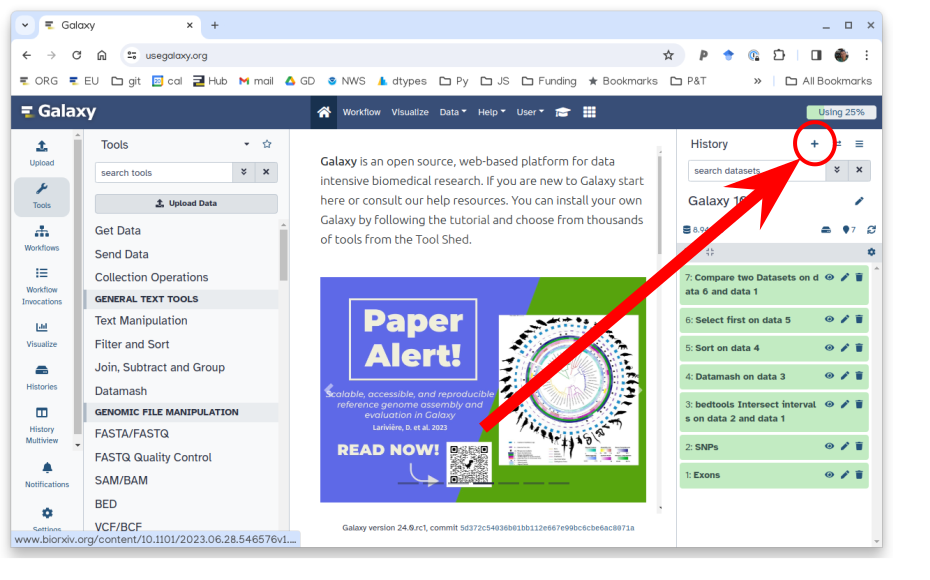
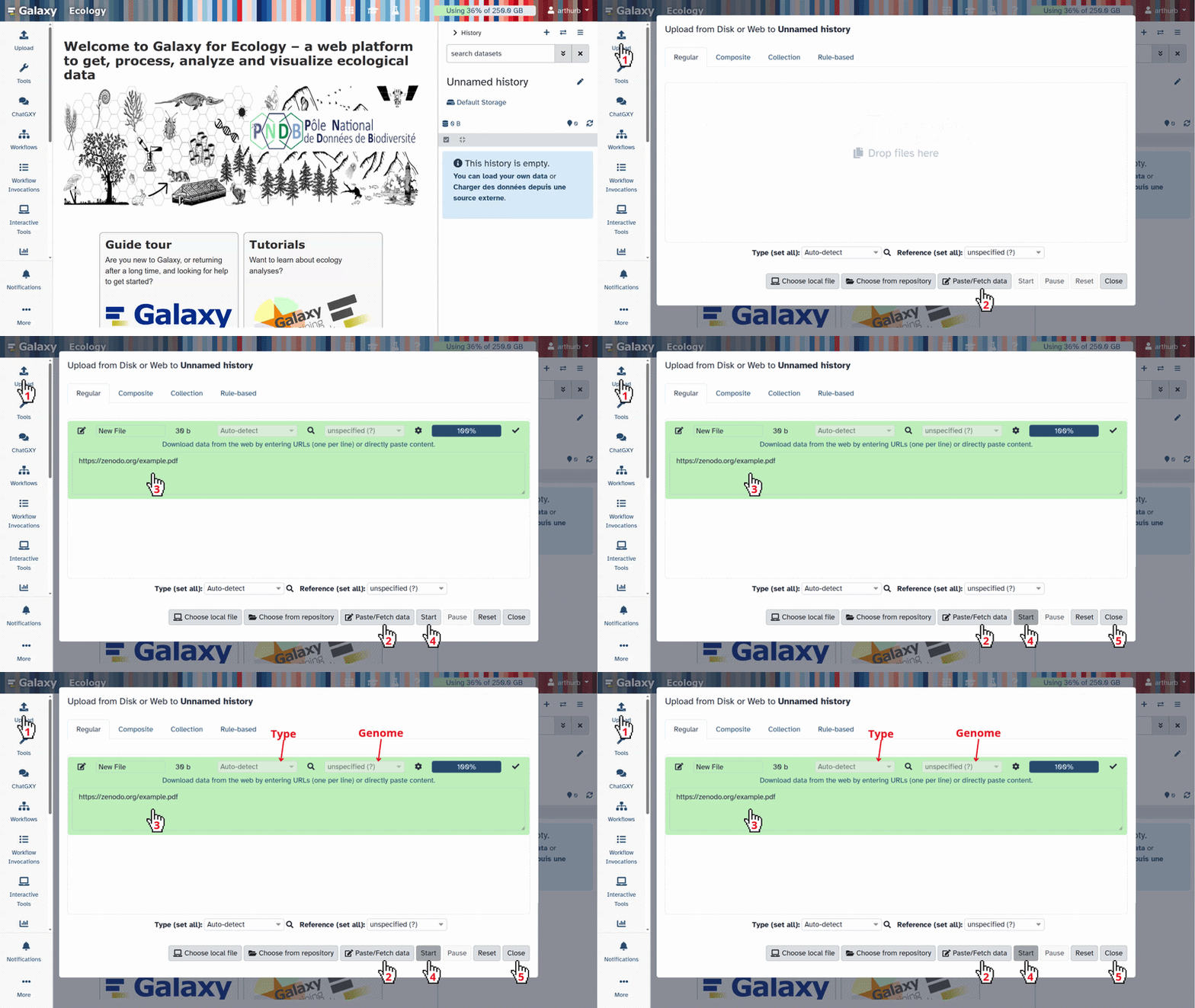
Click galaxy-uploadUpload at the top of the activity panel
Select galaxy-wf-editPaste/Fetch Data
Paste the link(s) into the text field
Press Start
Close the window
The data for this tutorial is a dataset from Citrobacter phage Merlin.
Simple Gene Tracks
If you have used JBrowse1 before, using JBrowse2 on Galaxy is very similar. If this is your first time, don’t worry, it’s easy to use. We’ll start by adding the structural annotation as a track in JBrowse2.
Navigate along the genome. Feel free to zoom in on specific areas.
To navigate along the genome, use your mouse by left-clicking and dragging. Arrows for moving are also available.
To zoom in on an area, you have several options. The first is to use the magnifying glass icon. The second option is to select your zoom level using your mouse.
If an area interests you, you can highlight it. Select the area in question, right-click, and select “Bookmark region”. You can change the color if you want to distinguish between different areas.
By clicking on a gene, you will be able to get information about it, such as the type (CDS, exon, gene), its length and its position.
Figure 2: All of the sequencing tracks in JBrowse2. Try exploring!Open image in new tab
Figure 3: Example of information that can be obtained by clicking on a gene
If you are not familiar with JBrowse2, here are a few important points:
To navigate along the genome, use your mouse by left-clicking and dragging. Arrows for moving are also available.
To zoom in on an area, you have several options. The first is to use the magnifying glass icon. The second option is to select your zoom level using your mouse.
If an area interests you, you can highlight it. Select the area in question, right-click, and select “Bookmark region”. You can change the color if you want to distinguish between different areas.
Complex Gene Tracks
As mentioned in the introduction, JBrowse2 supports a wide range of input formats for tracks. We previously launched JBrowse2 with a single track, so let’s launch it with multiple tracks.
Hands On: Build a JBrowse2 with multiple tracks
JBrowse2 ( Galaxy version 3.7.0+galaxy0) with the following parameters:
“Reference genome to display”: Use a genome from history
param-file“Select the reference genome”: merlin.fa
Click on “Insert Track Category”:
param-repeat“Track Category Label”: call it Structural annotation
Click on “Insert Track”:
- “Track Type”: GFF/GFF3/BED Features
- param-file“GFF/GFF3/BED Track Data”: merlin.gtf
Click on “Insert Track Category”:
param-repeat“Track Category Label”: call it Coverage
Click on “Insert Track”:
“Track Type”: BigWig
param-file“BigWig Track Data”: data.bw
Click on “Insert Track Category”:
param-repeat“Track Category Label”: call it Alignement RNA-seq
Click on “Insert Track”:
“Track Type”: CRAM
param-file“CRAM Track Data”: merlin-sample.cram
Click on “Insert Track Category”:
param-repeat“Track Category Label”: call it VCF SNPs
Figure 4: Example view of JBrowse2 with multiple tracks (reference genome, structural annotation, RNA-seq alignment, etc.).
Hi-C Data Visualization
The .hic file is a standard format used to store Hi-C interaction matrices. These matrices represent physical contacts between chromosomal regions within a genome, thereby revealing its 3D spatial organization. Unlike linear data (such as GFF annotations or BAM alignments), Hi-C provides insight into how regions of the genome are organized and physically interact in space, for example, to form loops or structural domains.
Hands On: Build the JBrowse2 with Hi-C data
JBrowse2 ( Galaxy version 3.7.0+galaxy0) with the following parameters:
“Reference genome to display”: Use a genome from history
param-file“Select the reference genome”: merlin.fa
Click on “Insert Track Category”:
param-repeat“Track Category Label”: call it Hi-C
Click on “Insert Track”:
- “Track Type”: HiC
- param-file“Hi-C Track Data”: merlin.hic
Figure 5: Hi-C heatmap showing chromosomal interactions in the 18,724–43,842 bp region of the *Citrobacter phage Merlin* genome.
In this image, we can see the chromosomal interactions in the 18,724–43,842 bp region of the Citrobacter phage Merlin genome.
How should we interpret our results?
A heatmap contains several patterns:
The diagonal line shows local interactions between neighboring regions on the linear genome.
The red blocks indicate long-range interactions between distant regions on the linear sequence. These blocks are often symmetrical and form an “X” or “checkerboard” pattern. This may correspond to:
DNA loops formed during replication or packaging of the viral genome.
Interactions between regulatory elements (e.g., promoters) that can influence gene transcription.
Arcs connect regions in physical interaction, which can help us understand how the viral genome is organized within the capsid.
To explore other examples of Hi-C data (such as eukaryotic genomes or more complex matrices), we invite you to check out the official JBrowse 2 demo.
Conclusion
This does not exhaustively cover JBrowse2, and the tool is more extensible than can be easily documented, but hopefully these examples are illustrative and can give you some ideas about your next steps. If you’d like to see more examples of visualizations, you can find them on the JBrowse2 website.
You've Finished the Tutorial
Please also consider filling out the Feedback Form as well!
Key points
This tutorial can not exhaustively cover every data type, but maybe it provides inspiration for your own analyses
JBrowse2 is a great, workflow-compatible alternative to other genome browsers
You can build visualisations that summarise dozens of analyses in one visualisation
Frequently Asked Questions
Have questions about this tutorial? Have a look at the available FAQ pages and support channels
Did you use this material as an instructor? Feel free to give us feedback on how it went.
Did you use this material as a learner or student? Click the form below to leave feedback.
Hiltemann, Saskia, Rasche, Helena et al., 2023 Galaxy Training: A Powerful Framework for Teaching! PLOS Computational Biology 10.1371/journal.pcbi.1010752
Batut et al., 2018 Community-Driven Data Analysis Training for Biology Cell Systems 10.1016/j.cels.2018.05.012
@misc{visualisation-jbrowse2,
author = "Romane LIBOUBAN",
	title = "Genomic Data Visualisation with JBrowse2 (Galaxy Training Materials)",
	year = "",
	month = "",
	day = "",
	url = "\url{https://training.galaxyproject.org/training-material/topics/visualisation/tutorials/jbrowse2/tutorial.html}",
	note = "[Online; accessed TODAY]"
}
@article{Hiltemann_2023,
	doi = {10.1371/journal.pcbi.1010752},
	url = {https://doi.org/10.1371%2Fjournal.pcbi.1010752},
	year = 2023,
	month = {jan},
	publisher = {Public Library of Science ({PLoS})},
	volume = {19},
	number = {1},
	pages = {e1010752},
	author = {Saskia Hiltemann and Helena Rasche and Simon Gladman and Hans-Rudolf Hotz and Delphine Larivi{\`{e}}re and Daniel Blankenberg and Pratik D. Jagtap and Thomas Wollmann and Anthony Bretaudeau and Nadia Gou{\'{e}} and Timothy J. Griffin and Coline Royaux and Yvan Le Bras and Subina Mehta and Anna Syme and Frederik Coppens and Bert Droesbeke and Nicola Soranzo and Wendi Bacon and Fotis Psomopoulos and Crist{\'{o}}bal Gallardo-Alba and John Davis and Melanie Christine Föll and Matthias Fahrner and Maria A. Doyle and Beatriz Serrano-Solano and Anne Claire Fouilloux and Peter van Heusden and Wolfgang Maier and Dave Clements and Florian Heyl and Björn Grüning and B{\'{e}}r{\'{e}}nice Batut and},
	editor = {Francis Ouellette},
	title = {Galaxy Training: A powerful framework for teaching!},
	journal = {PLoS Comput Biol}
}
Congratulations on successfully completing this tutorial!
You can use Ephemeris's shed-tools install command to install the tools used in this tutorial.

 Romane LIBOUBAN

Questions:
Open image in new tab
Open image in new tab
Open image in new tab
Open image in new tab
Open image in new tab