Introduction to the Dataverse Integration in Galaxy
| Author(s) |
  Anup Kumar
 Armin Dadras
|
| Editor(s) |
 Daniela Schneider
 |
| Reviewers |
  |
OverviewQuestions:
Objectives:
What is Dataverse?
How can you browse existing Dataverse repositories from within Galaxy?
How can you integrate a private Dataverse repository?
Import datasets to Galaxy using the Dataverse integration in Galaxy
Time estimation: 1 hourLevel: Introductory IntroductorySupporting Materials:Published: Jun 25, 2026Last modification: Oct 21, 2026License: Tutorial Content is licensed under Creative Commons Attribution 4.0 International License. The GTN Framework is licensed under MITpurl PURL: https://gxy.io/GTN:T00582version Revision: 4
What is Dataverse?
At its core, Dataverse is an open-source web application designed to share, preserve, cite, explore, and analyze research data. Developed and led by the Institute for Quantitative Social Science (IQSS) at Harvard University, it serves as a robust repository platform used by universities, research institutions, and laboratories worldwide to host data across all scientific disciplines, from genomics and structural biology to the social sciences.
For researchers, Dataverse acts as a digital archive that ensures data is not just stored, but made visible and accessible to the global scientific community. It automates the creation of standard academic citations and permanent identifiers, making data sharing an easy part of the research lifecycle.
How Dataverse Organizes Data
To effectively use Dataverse, it helps to understand its hierarchical structure. Think of it as a nested system that moves from institutional hosting down to individual files:
- Dataverse Collections (or “Dataverses”): A container that can hold other dataverses or datasets. An institution, department, laboratory, or individual researcher can have their own dedicated Dataverse collection, which they can brand, manage, and configure independently.
- Datasets: A dataset in Dataverse is a logical grouping of research data. It contains the actual data files, documentation, code, and the crucial metadata that describes the data.
- Files: These are the actual building blocks uploaded by the researcher, such as text files, CSV spreadsheets, FASTQ sequence files, imaging data, or R/Python analysis scripts.
This flexible hierarchy means a single institution can manage its entire data output under one parent Dataverse collection, while creating sub-collections for individual projects, grants, or researchers.
Why Use Dataverse?
Dataverse is built from the ground up around the **FAIR Data Principles** (Findable, Accessible, Interoperable, and Reusable). It achieves this through several important features:
- Persistent Identifiers: Every time a dataset is published, Dataverse automatically assigns it a Digital Object Identifier (DOI). This ensures the dataset can be permanently cited in academic journals, giving authors proper academic credit.
- Rich Metadata Standards: Dataverse enforces standard metadata schemas (like Dublin Core or DDI) and offers domain-specific metadata fields (such as life sciences or geospatial data). This makes your data highly searchable and discoverable by global search engines like Google Dataset Search.
- Rigorous Version Control: Research is iterative. Dataverse allows you to update datasets while maintaining a clear, public history of previous versions. If you add new samples or fix a data error, users can see exactly what changed between version 1.0 and 2.0.
- Customizable Access Control: Depositing data doesn’t mean losing control. Dataverse allows you to keep datasets restricted during a peer-review process, requires users to sign data use agreements, or release data fully into the public domain via Creative Commons (e.g., CC0) waivers.
Galaxy and Dataverse: Complementary Roles
In computational workflows, data generation, analysis, and archiving go hand in hand. While Galaxy is a platform for executing complex workflows and managing interactive data analysis, it is not designed to act as a permanent data repository.
By connecting Galaxy to Dataverse, researchers can directly export their finalized analysis histories, processed datasets, and verified workflows into a formal Dataverse repository. This creates an end-to-end, reproducible research pipeline: you import raw data, analyze it transparently in Galaxy, and deposit the verified results directly into Dataverse, ready for publication and community reuse. This data could even be accessed again with Galaxy for further analysis at a later stage.
How can you browse existing Dataverse repositories from within Galaxy?
Please note: The Galaxy Dataverse integration is currently only available on usegalaxy.eu. Galaxy has integrated Dataverse directly into its File Sources (Remote Files) framework. This allows researchers to search, browse, and import datasets from remote repositories directly into an active Galaxy history without first downloading them locally.
Method 1: Browsing Pre-configured Public Dataverses
Galaxy instances frequently maintain a list of pre-configured public repositories for major data platforms.
Hands On: Browse Pre-configured Dataverses
- Click the Upload Data icon at the top of the Galaxy tool panel.
- Inside the upload dialog box, select the Choose from repository button at the bottom.
- In the search/filter box at the top of the repository browser, type
Dataverse.- A list of globally available, pre-configured Dataverse instances will appear. It will look similar to this:
- Click an instance, such as BSC, to explore its public directories, datasets, and files of the Barcelona Supercomputing Centre’s Dataverse.
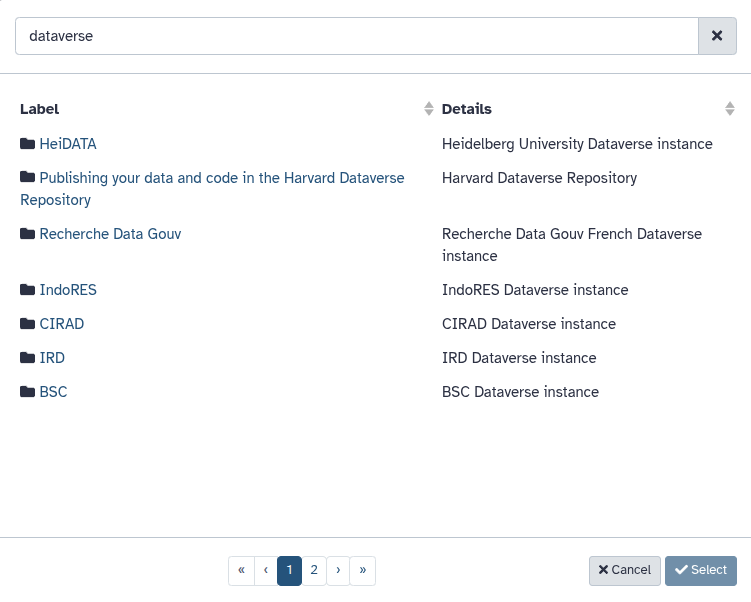
From here, you can browse for existing files or search a term in the search bar. Note: The search is case-sensitive. In the BSC Dataverse, search for, for example, _ Handwritten . You will see a folder called _A Dataset for Handwritten Text Recognition in Medieval Notarial Charters Written on Parchment. If you click the name, you can see the contents of that folder.
If you have found the folder or file(s) you want to work with, scroll down to “Importing Files to Galaxy”.
Method 2: Adding and Browsing a Custom Dataverse Repository
If you need to connect to an institutional Dataverse instance not listed by default, or if you need to access your own private datasets, you must first link your account using an API token.
Hands On: Generate an API Token in Dataverse
- Log in to the target Dataverse instance (e.g., Harvard Dataverse).
- Click on your account name and select API Token.
- Click Create Token and Copy to Clipboard to copy the token string.
Hands On: Link the Repository in Galaxy
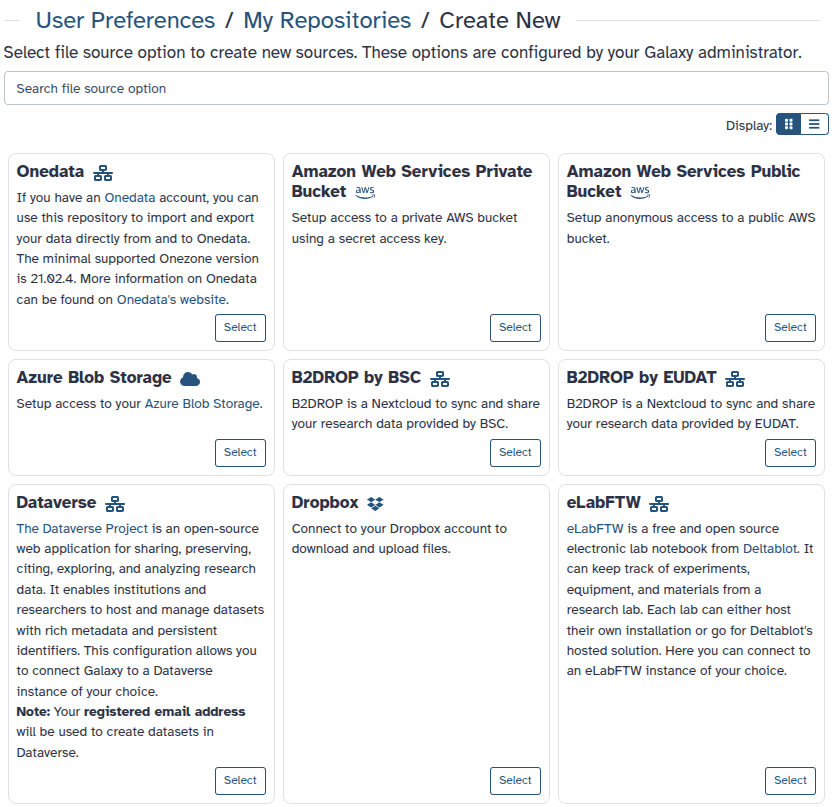
- In Galaxy, navigate to the top menu and click on your username and then Preferences.
- Select Manage your Repositories and click the Create button.
- Select Dataverse.
- Complete the configuration form:
- Name: A descriptive title (e.g., My Institutional Dataverse).
- Dataverse instance endpoint: The full base URL of the repository (e.g.,
https://dataverse.harvard.edu).- Allow Galaxy to export data: Set to Yes if you want the flexibility to push finalized Galaxy histories back to Dataverse later.
- API Token: Paste the token generated on the Dataverse instance of your choice in Step 1.
- Click Create.
The remote repository configuration menu looks like this:
Your completed form could look like this (but with information about the desired Dataverse):
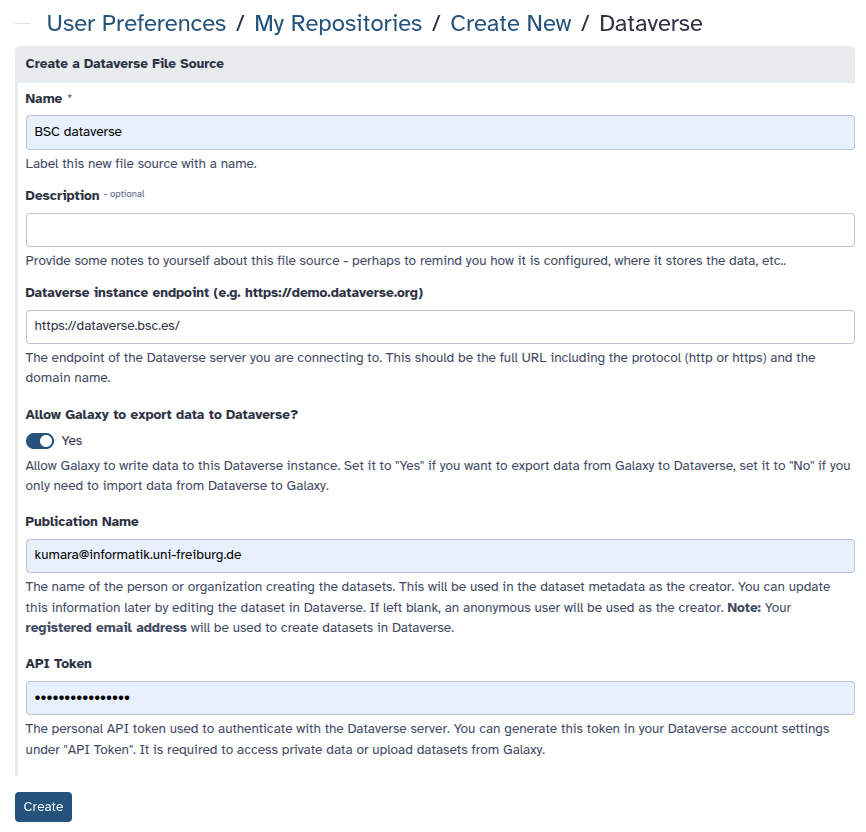
After saving, your new entry appears in My Repositories under the name you have selected.
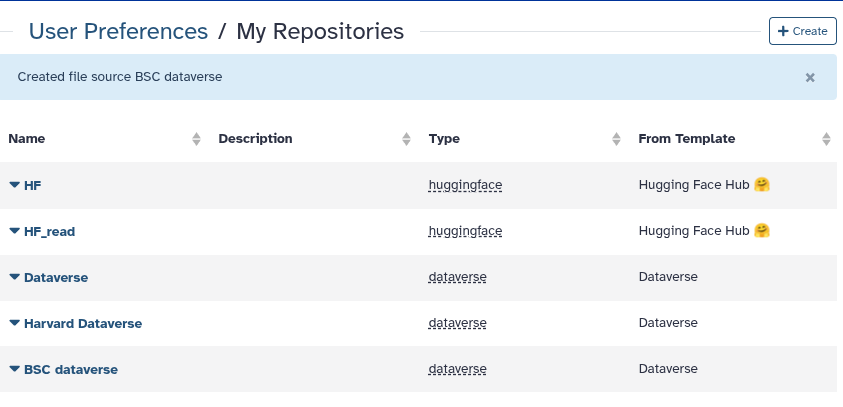
Now with your Dataverse all set, let’s see how you can get your data into Galaxy.
Importing Files to Galaxy
Once the connection between Galaxy and the Dataverse instance of your choice is established (via Method 1 or Method 2), navigating and uploading the files follows a standardized routine.
Hands On: Importing Discovered Files into Your History
- Open the Upload menu in the activity bar, then click Choose from repository.
- Select your newly configured or pre-configured Dataverse source by typing the name in the search bar and clicking on it.
- Browse or Search: You can navigate through the hierarchical Dataverse collections or use the search filter for dataset names.
- Select Files: Once you find the correct dataset container, click into it, tick the checkbox next to the desired files or the checkbox next to Label to select all files and hit Select.
- A new window appears, showing you how many files you selected. Click Start to run the import process and Close to close the upload window.
- The selected items will populate your Galaxy history.
Once the progress bar turns green, the datasets are ready to be routed into any analytical tool or workflow.
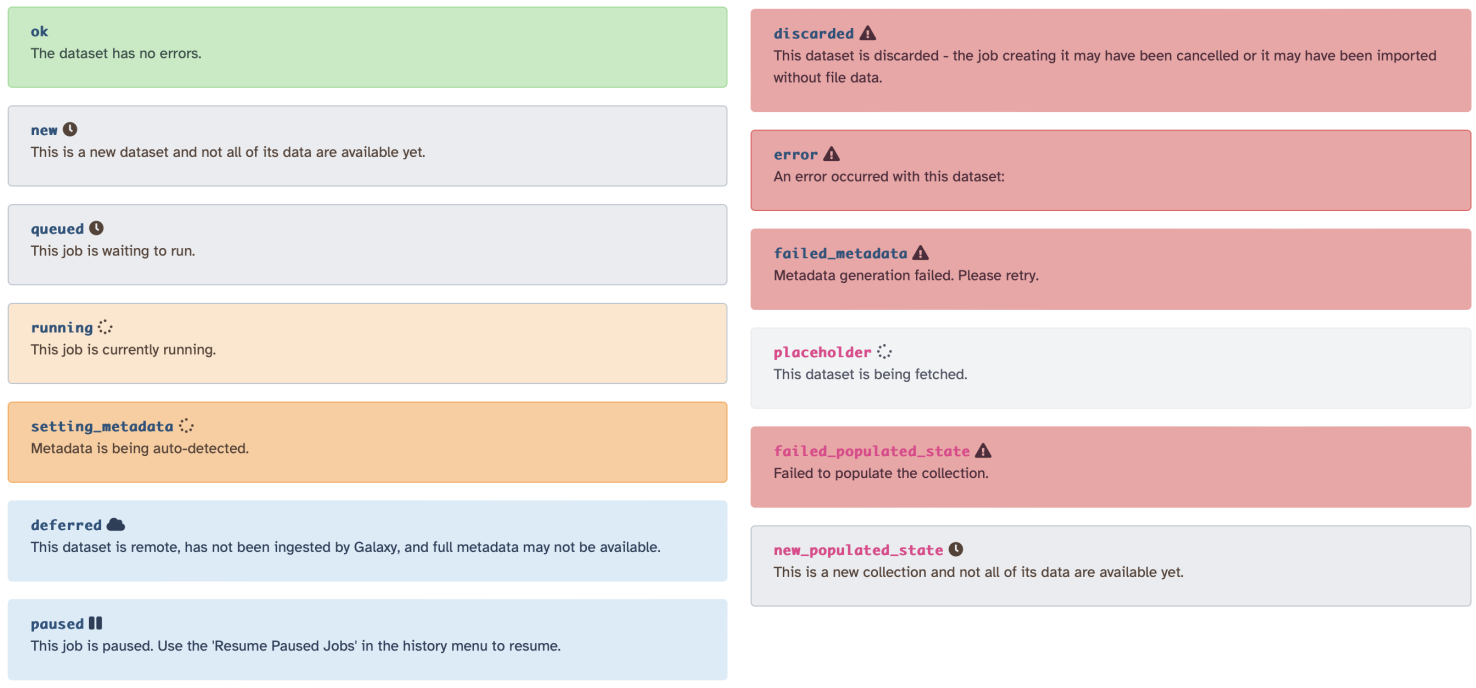
There are several different “states” a dataset can be in. These states are indicated by colors:
- ok: everything is fine, life is good;
- new: the dataset was just created. Galaxy does not yet know when it is available;
- queued: indicates that the job generating this dataset is scheduled for execution but not running yet;
- running: job generating this dataset is running;
- setting metadata: when a new dataset is uploaded Galaxy examines it to understand what kind of data it is (e.g., BAM, FASTQ, fasta, BED, etc.). This is called “setting metadata”;
- deferred: sometimes it does not make sense to upload the dataset until it is needed for an analysis. Galaxy will download deferred datasets later during the job execution. Those datasets do not count toward your quota;
- paused: in some cases, workflow executions or upstream errors can prevent subsequent jobs from starting to create datasets in “paused” state. Rerun the errored tool with the option Resume dependencies from this job? to resume paused jobs;
- discarded: something went wrong. For example, a job producing this dataset might have been cancelled;
- error: everything is not fine; life is bad! Click on the information i button to know more about what happened;
- placeholder: similar to “new”; we know something will be there, but are not yet sure what;
- failed populated state: this refers to collections (not individual datasets). Here, a collection has failed to be populated with datasets;
- new populated state: this refers to collections (not individual datasets). A collection was created but not populated yet.
You've Finished the Tutorial
Key points
With the Dataverse integration in Galaxy, you can directly browse and import public or private datasets, eliminating manual download cycles.
Frequently Asked Questions
Have questions about this tutorial? Have a look at the available FAQ pages and support channelsFeedback
Did you use this material as an instructor? Feel free to give us feedback on how it went.
Did you use this material as a learner or student? Click the form below to leave feedback.
Citing this Tutorial
- Anup Kumar, Armin Dadras, Introduction to the Dataverse Integration in Galaxy (Galaxy Training Materials). https://training.galaxyproject.org/training-material/topics/introduction/tutorials/galaxy-intro-dataverse/tutorial.html Online; accessed TODAY
- Hiltemann, Saskia, Rasche, Helena et al., 2023 Galaxy Training: A Powerful Framework for Teaching! PLOS Computational Biology 10.1371/journal.pcbi.1010752
- Batut et al., 2018 Community-Driven Data Analysis Training for Biology Cell Systems 10.1016/j.cels.2018.05.012
@misc{introduction-galaxy-intro-dataverse,
author = "Anup Kumar and Armin Dadras",
	title = "Introduction to the Dataverse Integration in Galaxy (Galaxy Training Materials)",
	year = "",
	month = "",
	day = "",
	url = "\url{https://training.galaxyproject.org/training-material/topics/introduction/tutorials/galaxy-intro-dataverse/tutorial.html}",
	note = "[Online; accessed TODAY]"
}
@article{Hiltemann_2023,
	doi = {10.1371/journal.pcbi.1010752},
	url = {https://doi.org/10.1371%2Fjournal.pcbi.1010752},
	year = 2023,
	month = {jan},
	publisher = {Public Library of Science ({PLoS})},
	volume = {19},
	number = {1},
	pages = {e1010752},
	author = {Saskia Hiltemann and Helena Rasche and Simon Gladman and Hans-Rudolf Hotz and Delphine Larivi{\`{e}}re and Daniel Blankenberg and Pratik D. Jagtap and Thomas Wollmann and Anthony Bretaudeau and Nadia Gou{\'{e}} and Timothy J. Griffin and Coline Royaux and Yvan Le Bras and Subina Mehta and Anna Syme and Frederik Coppens and Bert Droesbeke and Nicola Soranzo and Wendi Bacon and Fotis Psomopoulos and Crist{\'{o}}bal Gallardo-Alba and John Davis and Melanie Christine Föll and Matthias Fahrner and Maria A. Doyle and Beatriz Serrano-Solano and Anne Claire Fouilloux and Peter van Heusden and Wolfgang Maier and Dave Clements and Florian Heyl and Björn Grüning and B{\'{e}}r{\'{e}}nice Batut and},
	editor = {Francis Ouellette},
	title = {Galaxy Training: A powerful framework for teaching!},
	journal = {PLoS Comput Biol}
}
Funding
These individuals or organisations provided funding support for the development of this resource
Congratulations on successfully completing this tutorial!